

How to View the List of Applications
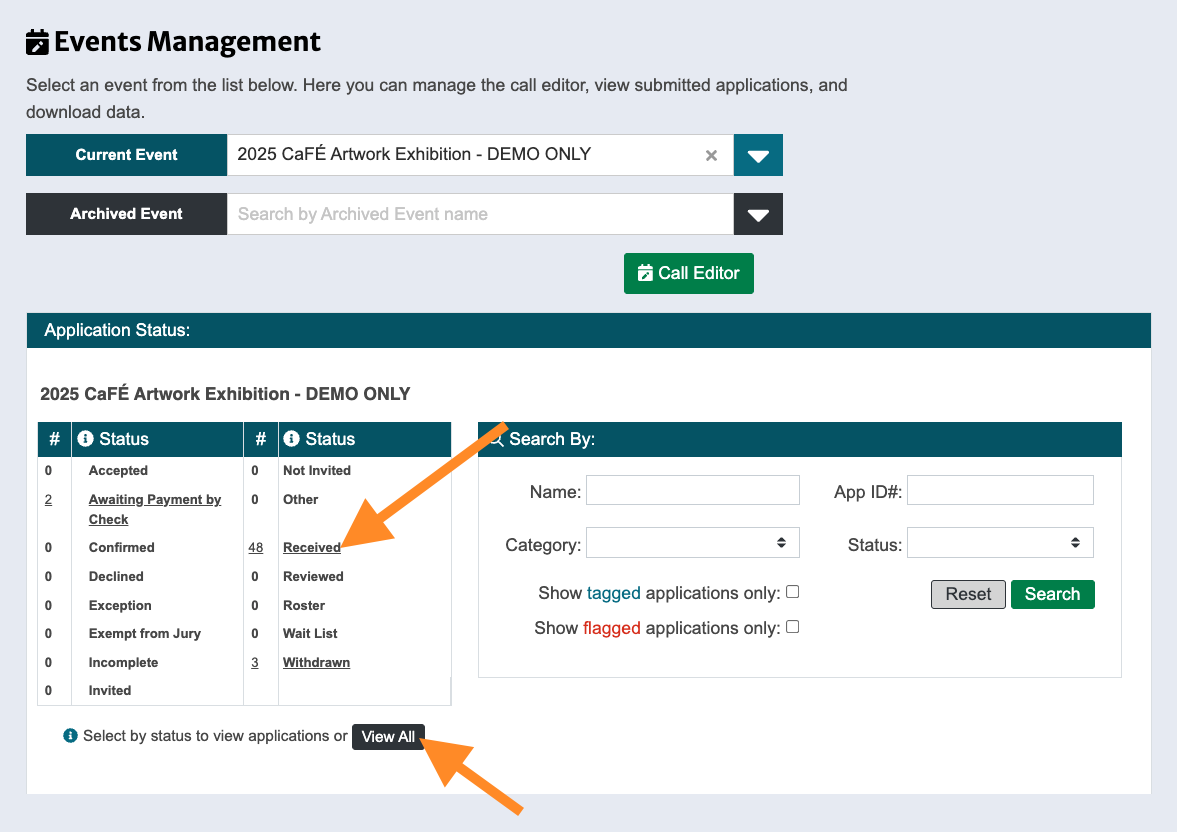
Log in to CaFÉ Admin and go to Events > Management. Select the call you want to view from the Current Event drop-down list.
Under Application Status, click on the name of a status or click View All.
To locate a specific application, use the Search By box to search by name or application ID. You can also filter applications by category or status, and filter by tagged or flagged applications.
The table of application(s) will appear on the page.
Click any column heading to sort the list up or down.
The table of applications will display in one of two ways, depending on your jury type (Scoring by Application or Scoring by Art):
If the call is Scoring by Art, each APP ID# = one artwork sample per artist.
For example, if an artist submits 3 artwork samples, there will be 3 separate applications, each with its own ID#.If the call is Scoring by Application, each APP ID# = a body of artwork per artist.
For example, if the call requests 4 artwork samples, there will be 1 application with one ID# and all 4 samples displaying.
Click on an application’s APP ID# to view the artist application. Learn more about viewing individual applications.
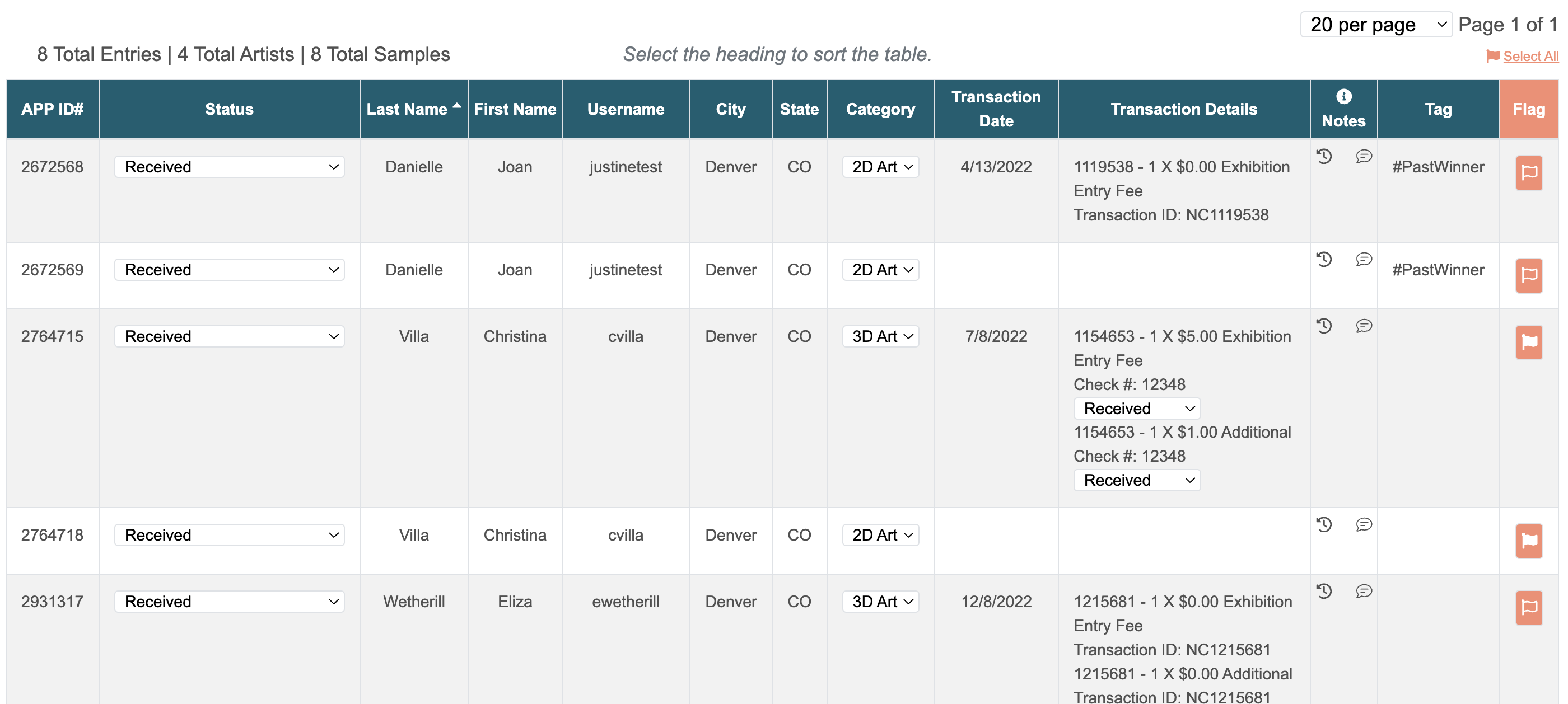
Click the arrow to the left of each column name to see more information.
APP ID#
Unique application number assigned by CaFÉ. Click this number to see the artist’s application.
Status
Displays the current status of the application. To change the status, select a new one from the drop-down menu.
Last Name/First Name/Username/City/State
Displays profile information about the applicant. If an artist is a part of a team, it will be indicated in their artist application.
Category
Displays the category selected by the artist, if used. If you need to change the category, select from the drop-down menu.
Transaction Date
Displays the date the application was submitted.
Transaction Details
Lists the cost and quantity of items purchased by the artist.
Notes
Click the clock 🕗 icon to view the status history for an application.
Click the comment bubble 💬 icon to add a comment. Comments are internal and cannot be seen by the applicant.
Tag
Displays tags created by the administrator.
Flag
Click the Flag icon to flag an application. Flags are internal and cannot be seen by the applicant.
⚡TIP: Learn more about downloading application information on the Downloading Application Reports guide.
