


How to Log In as a Juror
Enter your username and password. (This will be shared with you by the call administrator)
Once logged in, click on Jury from the left-hand menu and click on the Jury sub-menu option.
Choose the name of the call from the Current Event drop-down menu. If you are only assigned to one call, skip this step.
The Applicant Table will be displayed below the call name. Follow the steps below to open the scorecard.
🚨 Don't see the Applicant Table?
Click the arrow to the left of each option for more information
The page says "You have not been assigned to a call."
If you see a message that says "You have not been assigned to a call, so you will not be able to view or score applicants," this means your juror account has not been given access to the call for entry. Contact the call administrator to ensure they assign you to it.
The page says "This jury is not in progress."
If you see a message that says, "This jury is not in progress, so you will not be able to view or score applicants," this means that the Jury Status for the call is currently set to Not Yet Started. Contact the call administrator and ask them to change the Jury Status to In Progress so you can access the scorecard.
There are 0 applications in the Applicant Table.
If the Applicant Table shows 0 applications, this likely means the applications are not in the Received status. Contact the call administrator and ensure they put all applications that must be scored into the Received status.
How to Open the Scorecard
Log in to CaFÉ with your juror account and select the call from the Current Event drop-down menu (if applicable).
If the scorecard view is set to Slideshow View, select your scorecard view preference. If you do not see these options, skip to step 3.
3. Click on the number of entries in the table to begin your review.
If categories are available, you may start at any category. If no categories are available, you may start at the total number of applications.
To search for a specific artist or application, enter the Artist ID, Application, ID, or Artist Name in the Search By box. Click Go to view the search results.
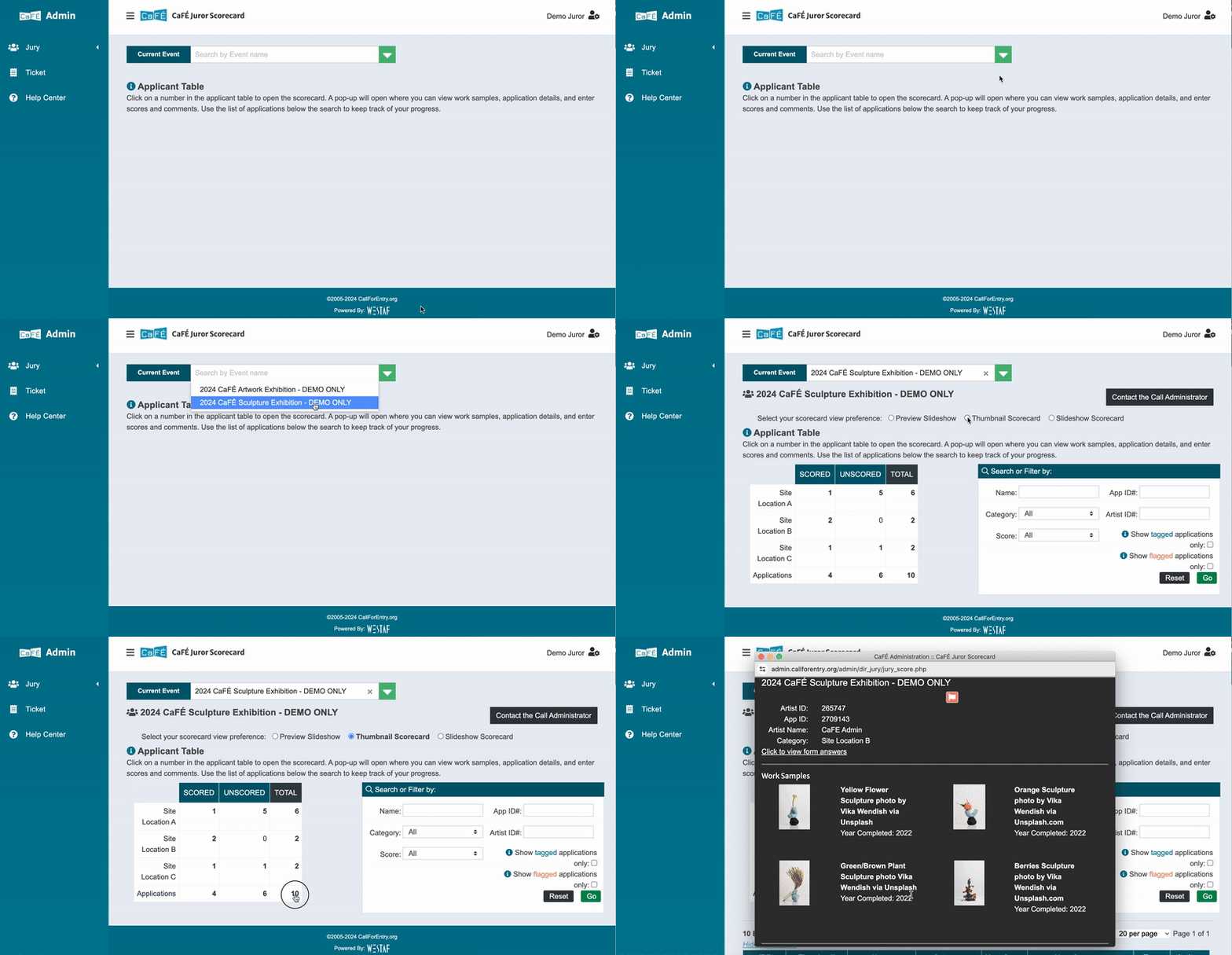
4. If the scorecard view is set to Slideshow View or List View, the scorecard will open in a new window. If the scorecard view is set to Grid View, you will see the scorecard open on the same page.
⚠️ Note: If the scorecard does not open in a new window, ensure your browser’s pop-up blocker is deactivated for the CaFÉ website.
The Scorecard View is predetermined and set by the call administrator. Depending on your scorecard view, select one of the following to view the scoring instructions: