

How to View an Individual Application
Log in to CaFÉ Admin and go to Events > Management. Select the call you want to view from the Current Event drop-down list.
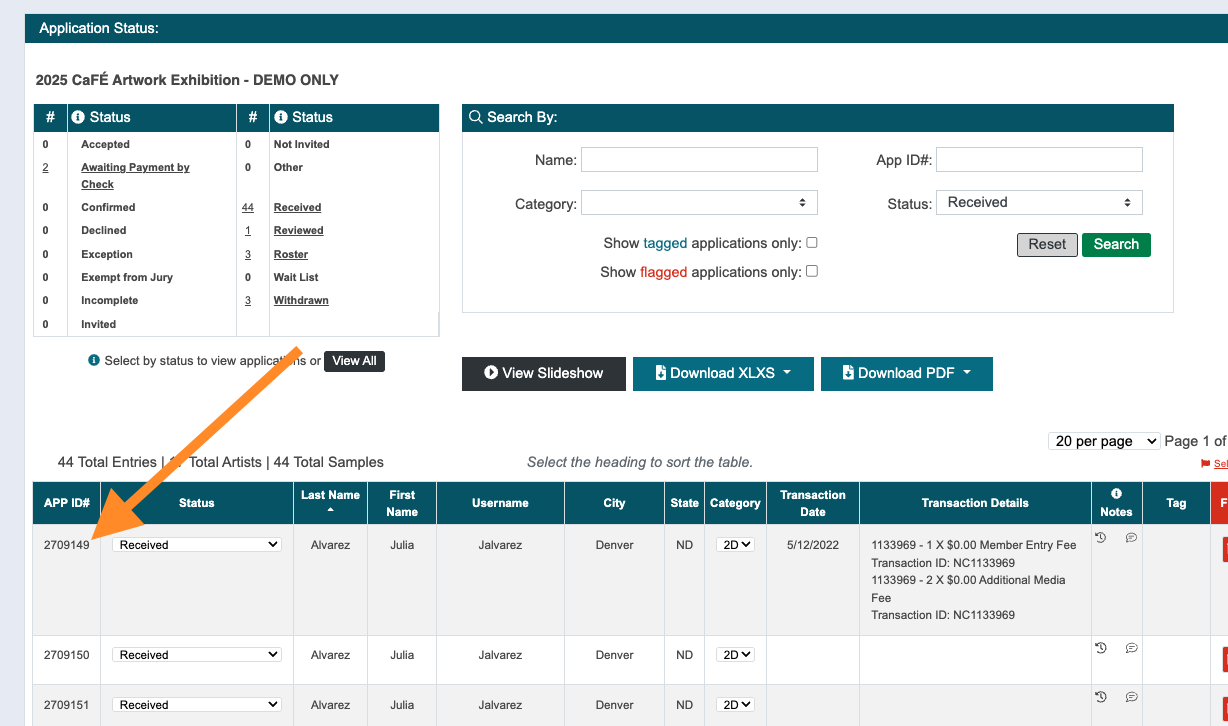
Find an application by clicking on its status or search for it using the Search By box.
Click on the application’s APP ID# from the table of applications.
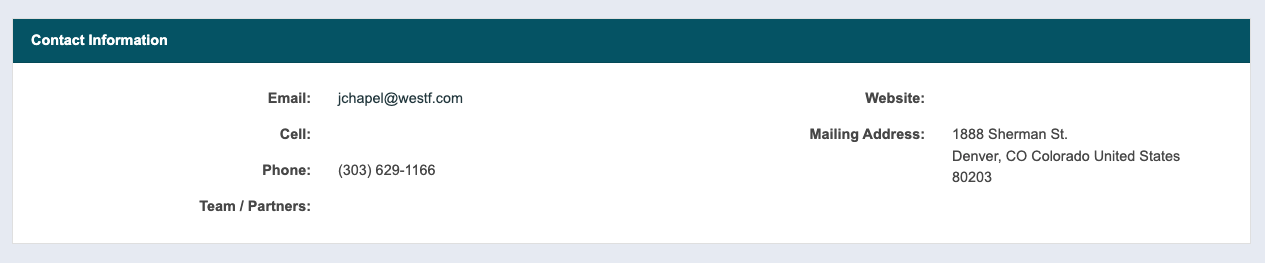
View the applicant’s profile details in the Contact Information section. Click on the applicant’s email address to send an individual email.
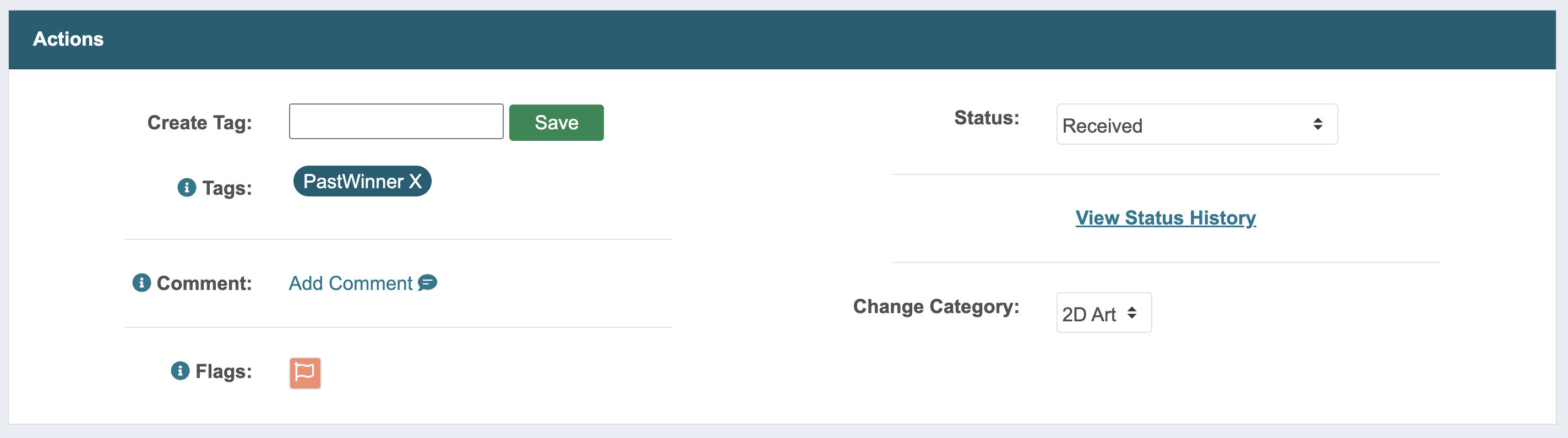
Notate the application in the Actions section.
Click the arrow to the left of each option to see more information.
Tag
To add a tag, enter up to 12 characters next to Create Tag and click Save. Add up to three tags per application. Tags cannot be seen by the applicant but can be seen by the juror(s).
Comment
To add a comment, click Add Comment. Comments are internal and cannot be seen by the applicant.
Flag
To flag the application, click the Flag icon. Flags cannot be seen by the applicant but can be seen by the juror(s).
Status
Change the Status by updating the dropdown menu. Changes will be saved automatically.
View Status History
Click View Status History to view a record of the application’s status changes.
Category
Change the Category by updating the dropdown menu. Changes will be saved automatically.
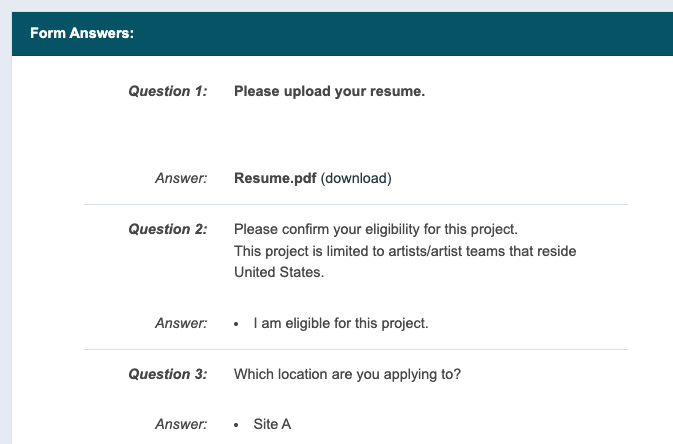
View the applicant’s answers to your custom form questions in the Form Answers section.
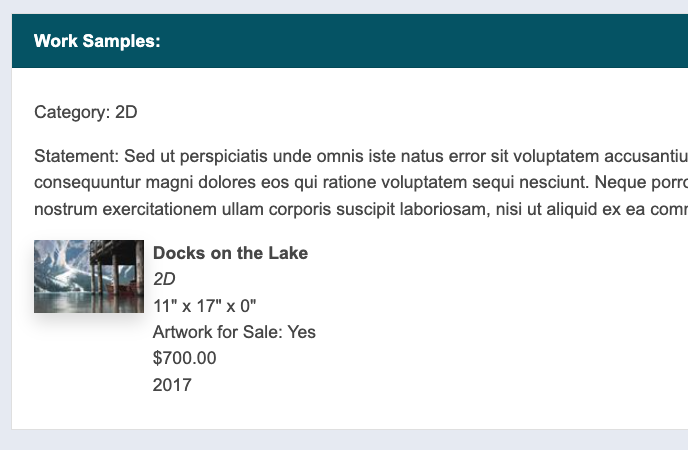
View artist statements and work samples in the Work Samples section. Click on the thumbnail to view the enlarged image and artwork details.
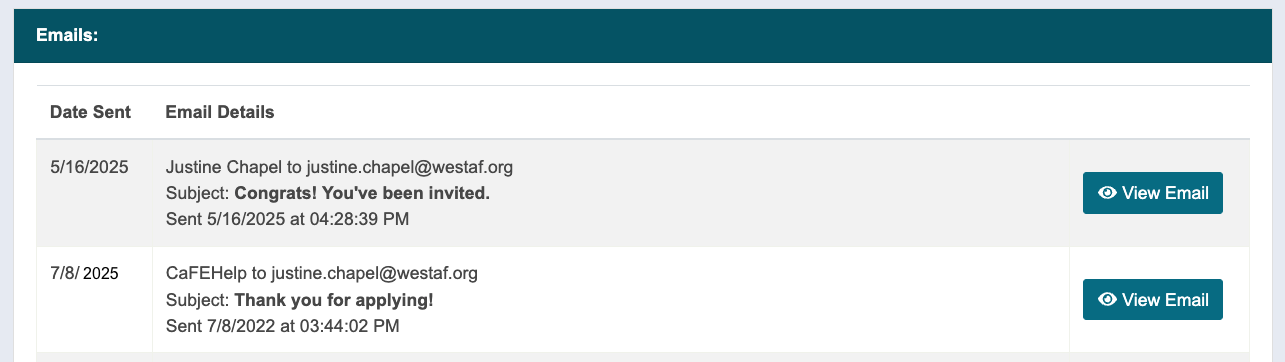
View emails sent to the applicant in the Emails section. Click View Email to view the message.
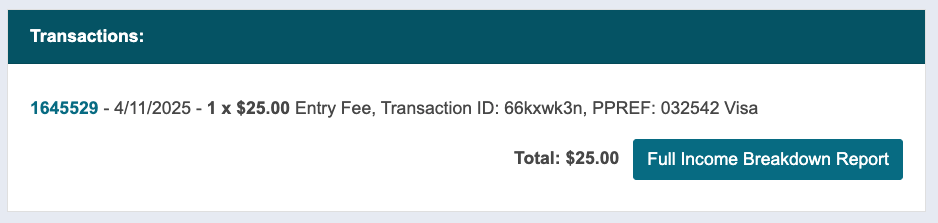
View the transaction details in the Transaction section.
How to Download Application Files
👉 For detailed instructions on downloading application files, visit Downloading Application Files.
