

How to Download Application Information
Log in to CaFÉ Admin and go to Events > Management. Select the call you want to view from the Current Event drop-down list.
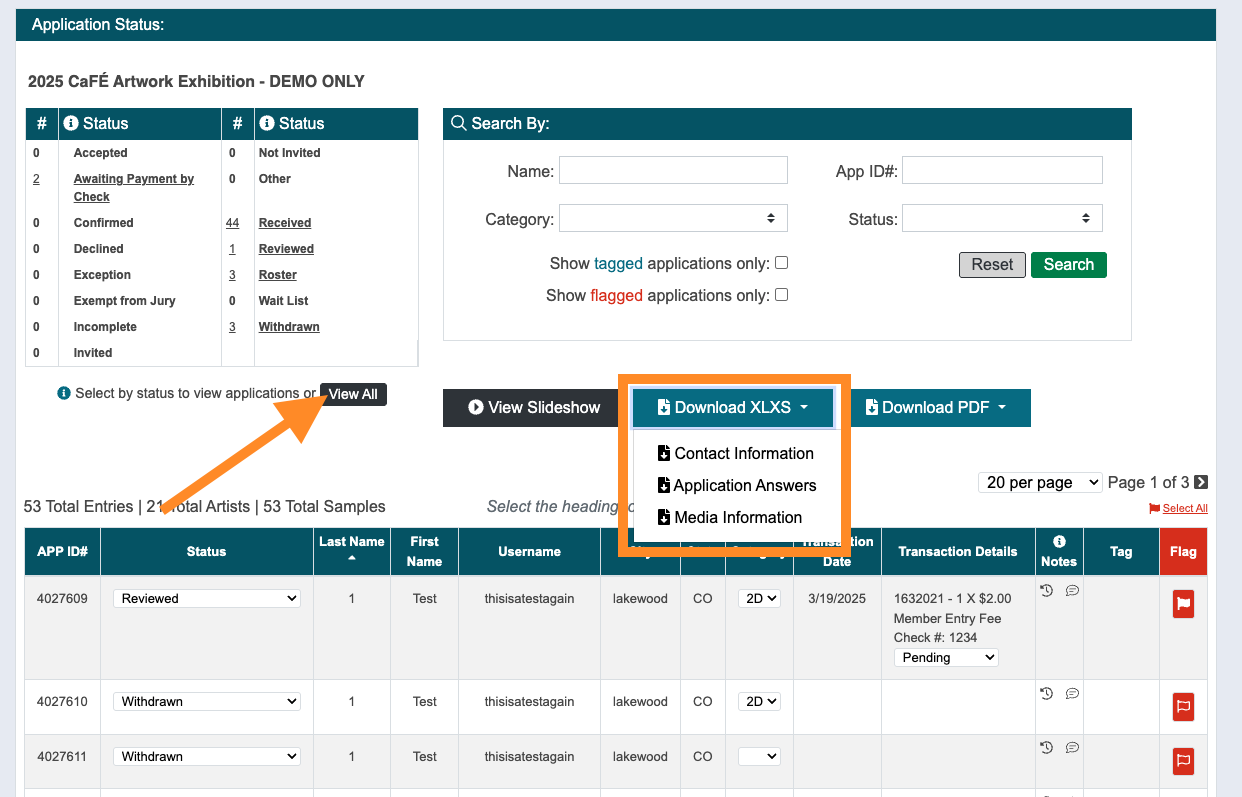
Select the application status, search for an individual, or click View All.
Click the Download XLSX button to see the three reports you can download in the form of a spreadsheet:
🧑🎨 Contact Information: Lists the applicants’ contact information.
📃 Application Answers: Lists the applicants’ answers to custom form questions. Does not include any file uploads.
🖼️ Media Information: Lists the details of the artwork the applicants’ submit with their application(s) (title, dimensions, year, price, etc.). Does not include thumbnails of the work samples.
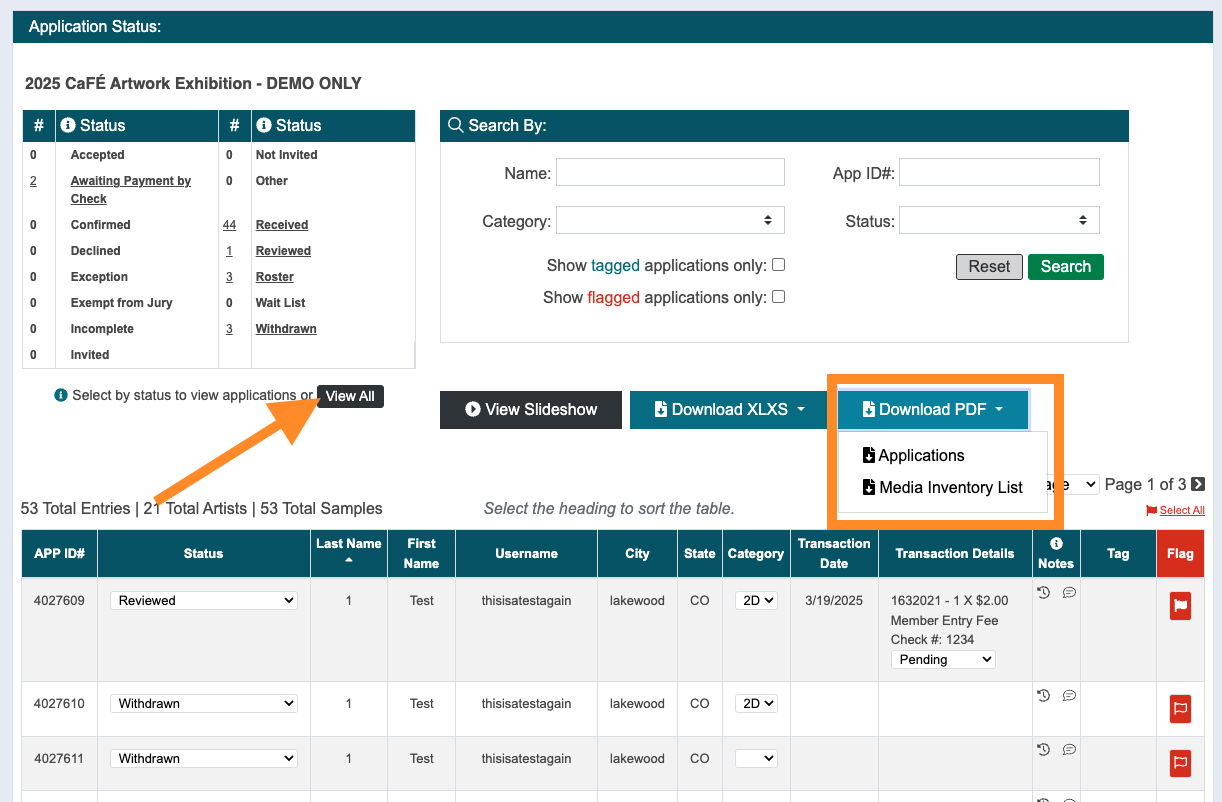
Click the Download PDF button to see the two reports you can download as PDFs:
📂 Applications: Exports copies of the full applications from each applicant, including contact information, answers to custom form questions, and work sample thumbnails. Does not include file uploads.
🗄️ Media Inventory List: Exports a grid of the work sample thumbnails and includes artist names and details of the artwork (title, dimensions, year, price, etc.)
5. Once you click on the report you want, the file will immediately begin downloading on your computer.
✨ TIP: Sort the table of applications in your desired order (click any column heading to sort the list up or down) before downloading. The information in the report will download in the same order as the table of applications.
