


How to Set up the Jury 🛠️
Log in to CaFÉ Admin and go to Jury > Administration. Select the call you want to view from the Current Event drop-down list.
Be sure the Setup button is selected.
Under Jury Settings, choose your scorecard options.
Under Scorecard Display, choose which artwork details you want to hide from jurors.
Under Application Questions, choose which custom form questions you want to hide from jurors.
Click Save 💾 to save changes to your jury setup.
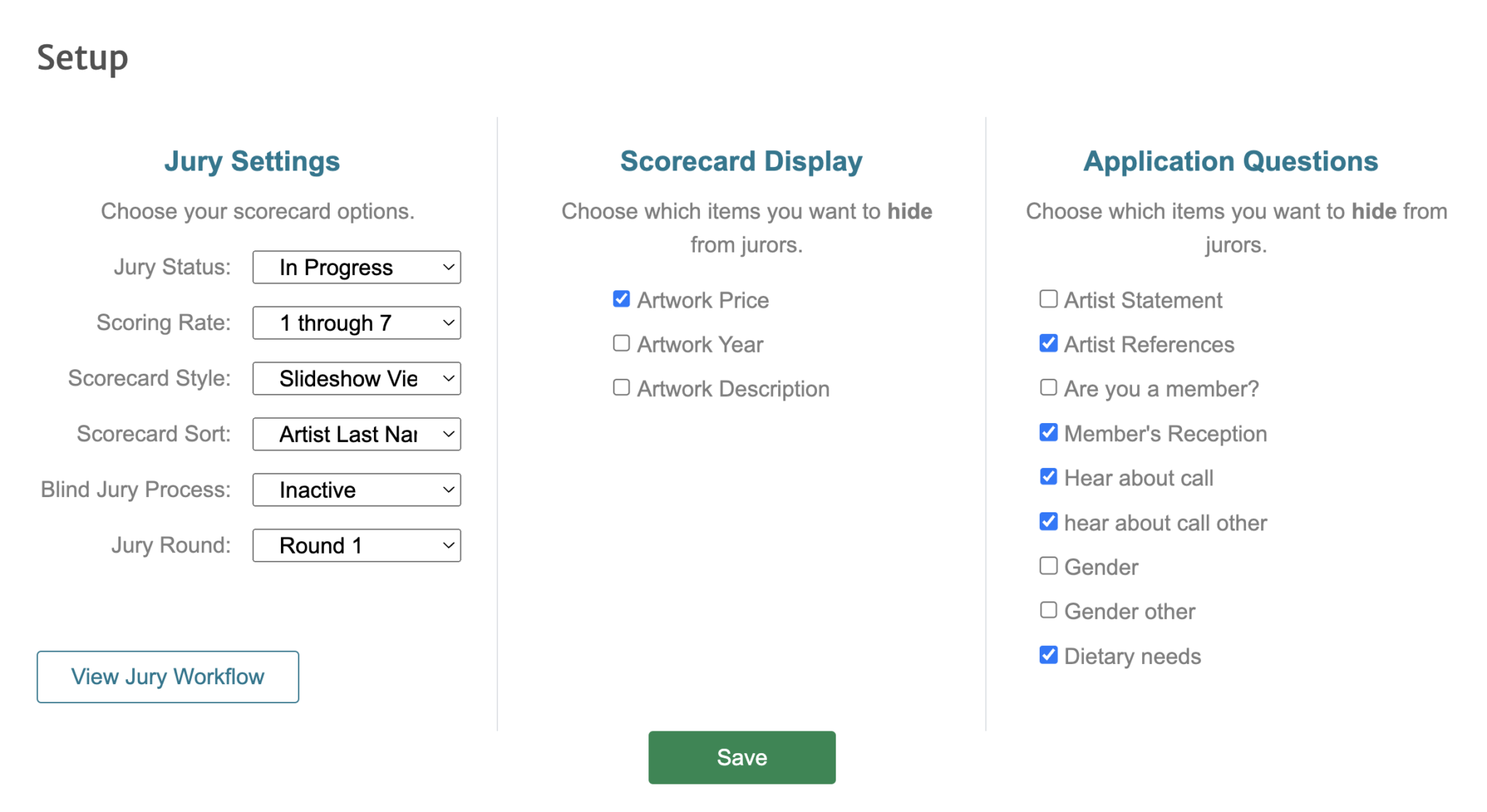
Click the arrow to the left of each setting to see more information.
Jury Status
Not Yet Started: The scorecard is closed to jurors and application statuses are visible to the artists.
In Progress: The scorecard is open to jurors, and application statuses are hidden to the artists.
Complete: The scorecard is closed to jurors, jury results are completed, and application statuses are visible to the artists.
Scoring Rate
1 through 7: 1 being the lowest, and 7 being the highest.
1 through 20: 1 being the lowest, and 20 being the highest.
Yes, No, Maybe: Value of 3, 1, and 2, respectively.
Scorecard Style
Slideshow View: Displays the scorecards as a slideshow, one at a time, against a gray background.
List View: Displays the scorecards as a list of entries against a white background.
Grid View: Displays a grid of 20 thumbnails with scoring options underneath. Available for Scoring by Art events only.
Scorecard Sort
Application ID: Sorts the entries in ascending order by the application ID#.
Artist Last Name: Sorts the entries in ascending order (A to Z) by last names.
Artist ID Randomly: Sorts the entries in a random order. When selected, click Randomize Order to randomize the entries.
Blind Jury Process
Active: Artist names are hidden from the scorecards.
Inactive: Artist names are visible on the scorecards.
Jury Round
If you are conducting multiple jury rounds, select your next round number. Scores from Round 1 will be hidden during Round 2 where jurors can enter new scores. Repeat the process for as many rounds as needed.
✨ Ready to add your juror(s)? Create juror accounts and assign them to your call.
How to Begin the Jury 🏁
Ensure all the entries are in the Received status.
Ensure the Jury Status is set to In Progress.
Instruct your juror(s) to log in at admin.callforentry.org with the credentials you provided.
Direct your jurors to this help page for instructions on how to log in and score the entries.
As jurors enter their scores, you can see the number of scored entries by each juror on the Jurors section of the Jury Administration page.