

How to Bulk Download Application Files
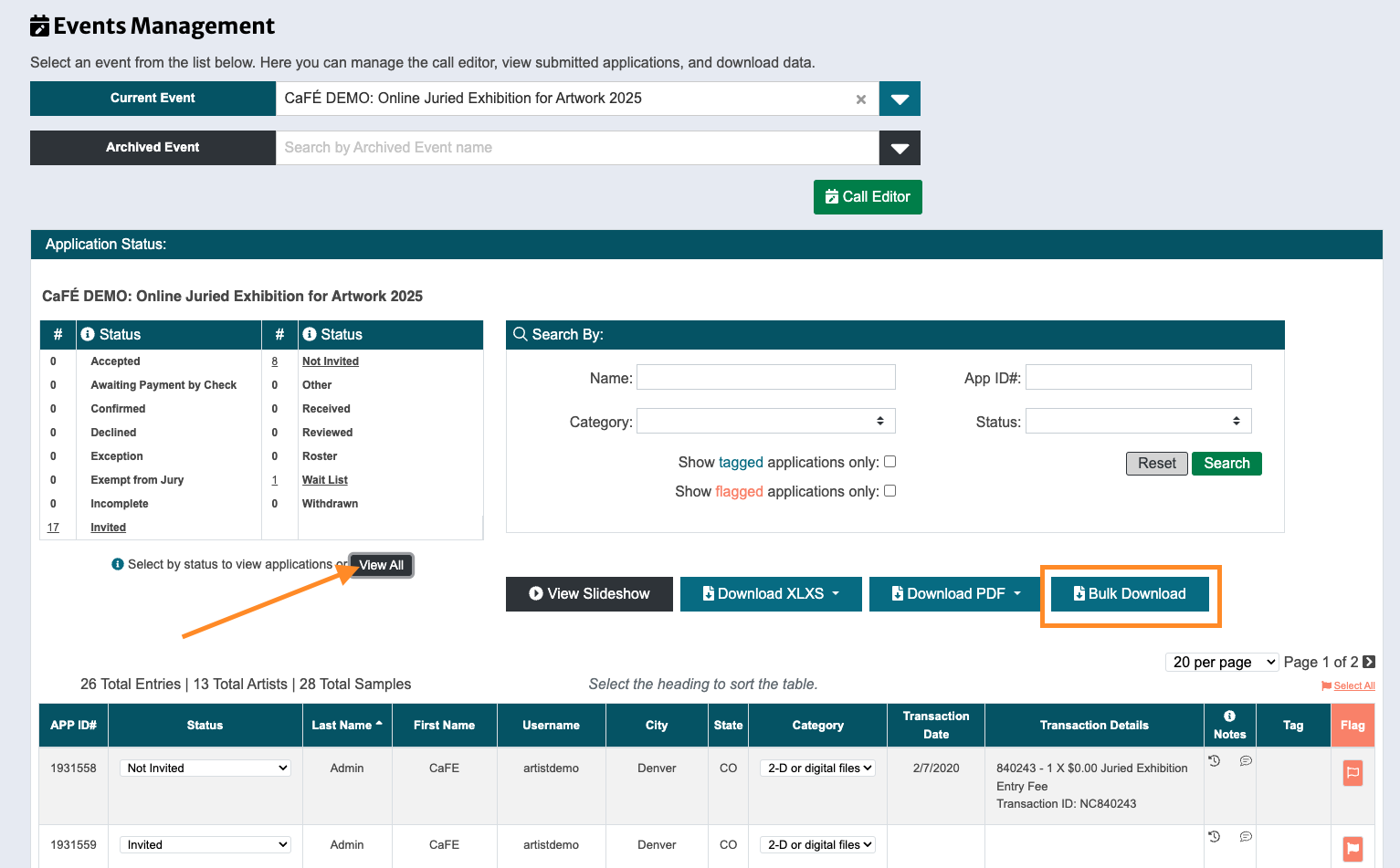
Log in to CaFÉ Admin and go to Events > Management. Select the call you want to view from the Current Event drop-down list.
Select the application status, search for an individual application, or click View All.
Click Bulk Download.
A ZIP file containing all uploaded files from the application form questions will be generated and emailed to you when it’s ready to download.
Open the email and click Download ZIP File. The file should begin downloading immediately.
⚠️ Note: ZIP files will be available to download up to 1 week after generating.
Open the ZIP file on your computer.
The files will be organized into folders by category (if applicable), status, and artist name.
Each file will be labeled in the following format: [Artist Last Name]_[Application ID]_[Call ID]_[Question Number]
How to Individually Download Application Files
Find the application on the Events > Management page.
Click on the application’s APP ID# to view the artist application.
Find the file attachment under the Form Answers section.
Click (download). The file should begin downloading immediately.

✨ TIP: Learn more about the information collected via CaFÉ and how to manage applications by watching our webinar, Tools & Tips for Application Management.
