


🎥 Watch our webinar, Jurying on CaFÉ: A Deep Dive into Artist Selection, for a video tutorial on this process.
How to Move Applications to the Not Invited Status ❌
Log in to CaFÉ Admin and go to Jury > Administration. Select the call you want to view from the Current Event drop-down list.
Click Manage, then click Change Status to Not Invited.
If applicable, select each category from which you want to change the application status.
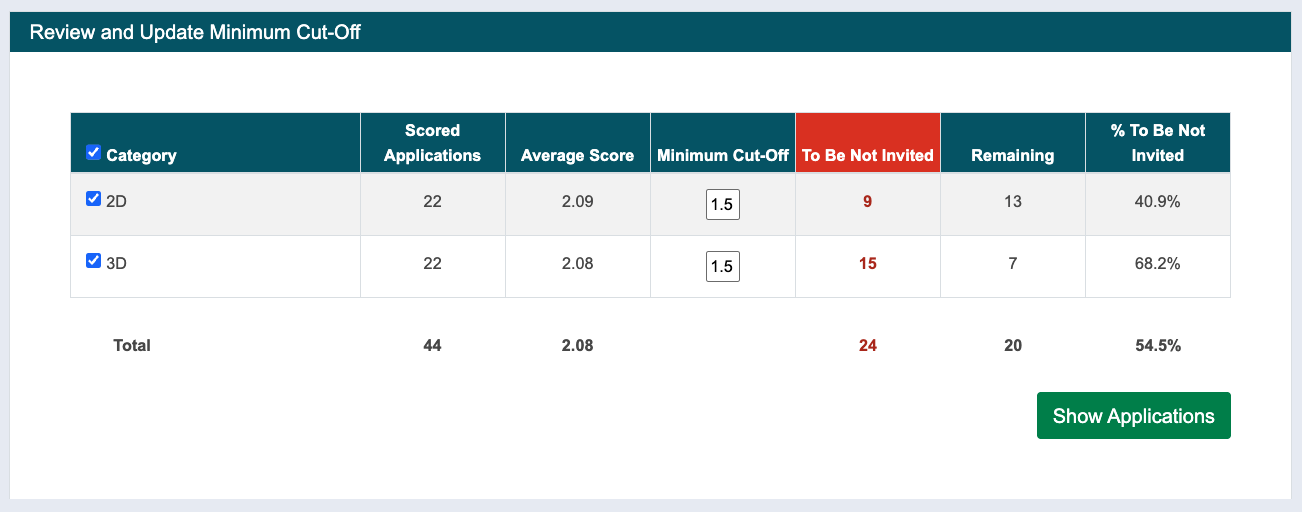
Enter the Minimum Cut-Off score.
Any entries with a score below this cut-off will be moved to the Not Invited status and eliminated from the jury. The default minimum cut-off is the average score of all entries.
📌 For example, if you want to eliminate the entries that scored lower than 4, enter 4 as your minimum cut-off.
The number of entries in the To Be Not Invited, Remaining, and the % To be Not Invited columns will update automatically when you change the minimum cut-off score.
Click Show Applications.
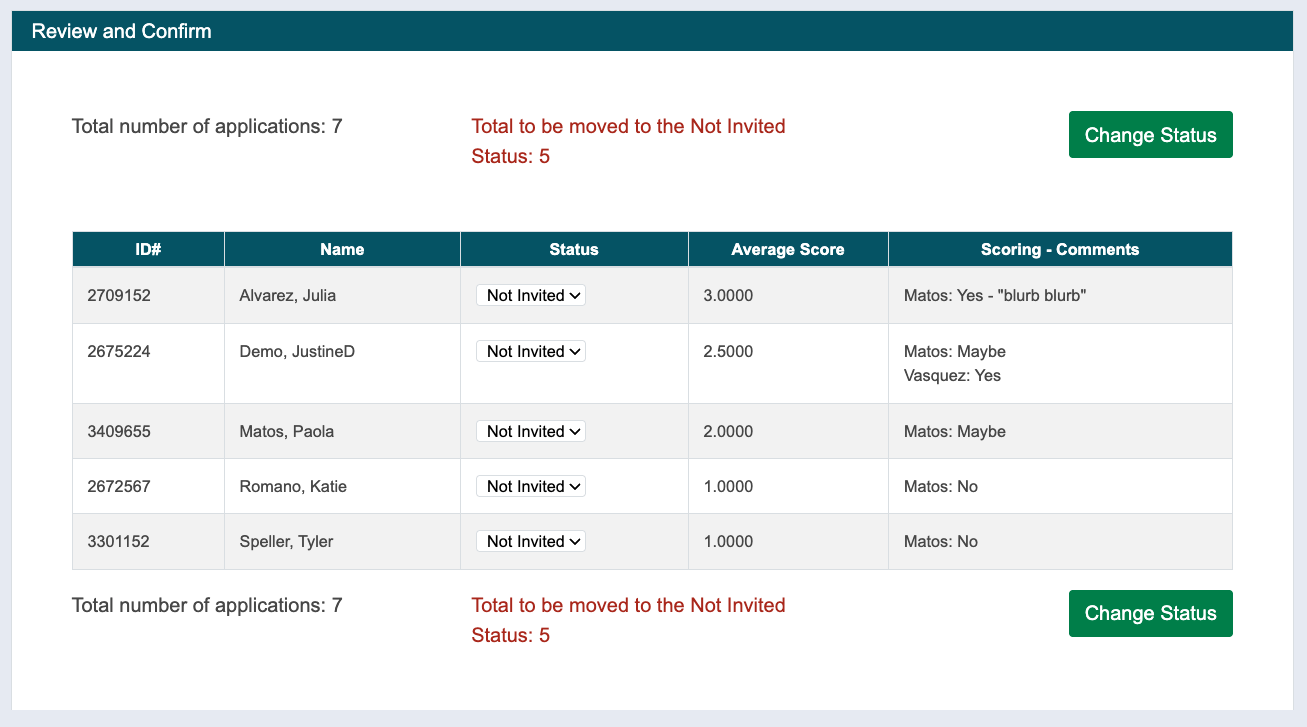
Review the list to confirm that the entries with the lowest scores will be moved to the Not Invited status.
At this stage, you can change the status of an application(s) to Waitlist, Invited, or Received by changing the Status drop-down menu.
Click Change Status, and the entries will move to the Not Invited status.
↩️ Conducting another round of scoring? Return to Setup and update the Jury Round. Repeat these steps after jurors have scored the next round.
✨ Ready to invite the remaining artists? Follow the instructions below to move the highest-scoring applications to the Invited status.
How to Move Applications to the Invited Status ✅
Log in to CaFÉ Admin and go to Jury > Administration. Select the call you want to view from the Current Event drop-down list.
Click Manage, then click Change Status to Invited.
If applicable, select each category from which you want to change the application status.
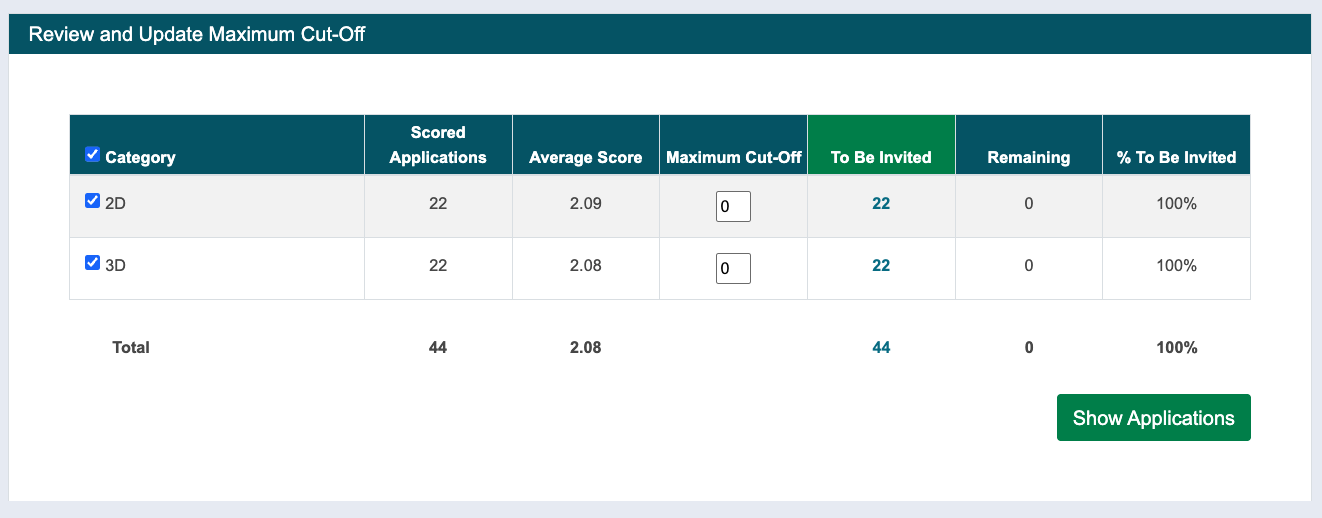
Enter the Maximum Cut-Off.
Any entries with a score above this cut-off will be moved to the Invited status. The default maximum cut-off is 0.
📌 For example, if you want to invite the entries that scored higher than 5, enter 5 as your maximum cut-off. If you want to move all remaining entries to the Invited status, leave the maximum cut-off at 0.
5. The number of entries in the To Be Invited, Remaining, and the % To be Invited columns will update automatically when you change the maximum cut-off score.
6. Click Show Applications.
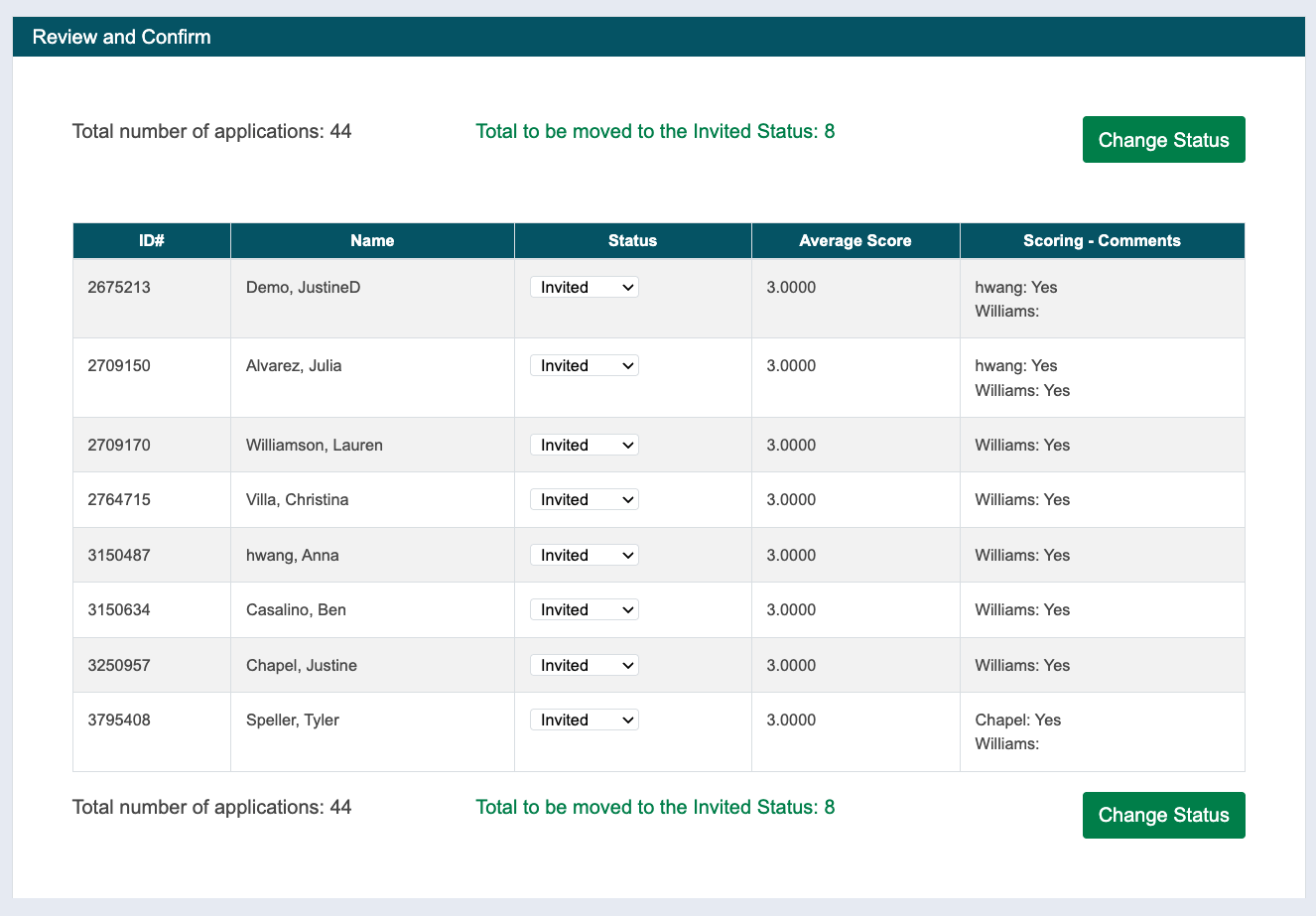
Review the list to confirm that the entries with the lowest scores will be moved to the Invited status.
At this stage, you can change the status of an application(s) to Waitlist, Invited, or Received by changing the Status drop-down menu.
Click Change Status, and the entries will move to the Invited status.
⚡ TIP: Head to Events > Management to check and make sure the entries are in the Invited and Not Invited statuses.
✨ Finished sorting scored applications? You're ready to notify artists and finalize the jury!