


How to Open the Scorecard Using Slideshow View
Log in to CaFÉ with your juror account and select the call from the Current Event drop-down menu (if applicable).
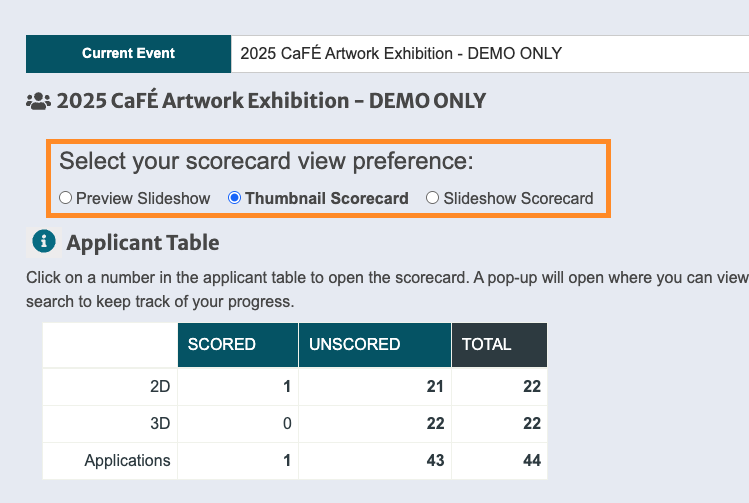
Select your scorecard view preference.
Preview Slideshow displays a slideshow of the work samples (you can't score in this view).
Thumbnail Scorecard displays each scorecard with thumbnails of the work samples.
Slideshow Scorecard displays a slideshow of each entry’s work samples first, followed by the scorecard.
3. From the Applicant Table, click on the number of entries you wish to score. The scorecard will open in a pop-up window.
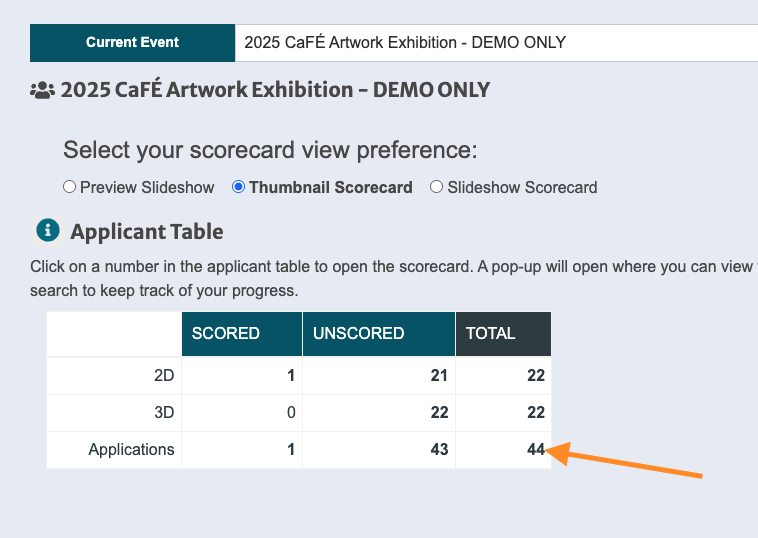
⚠️ Note: If the scorecard does not open in a new window, ensure your browser’s pop-up blocker is deactivated for the CaFÉ website.
How to Score Applications Using Slideshow View
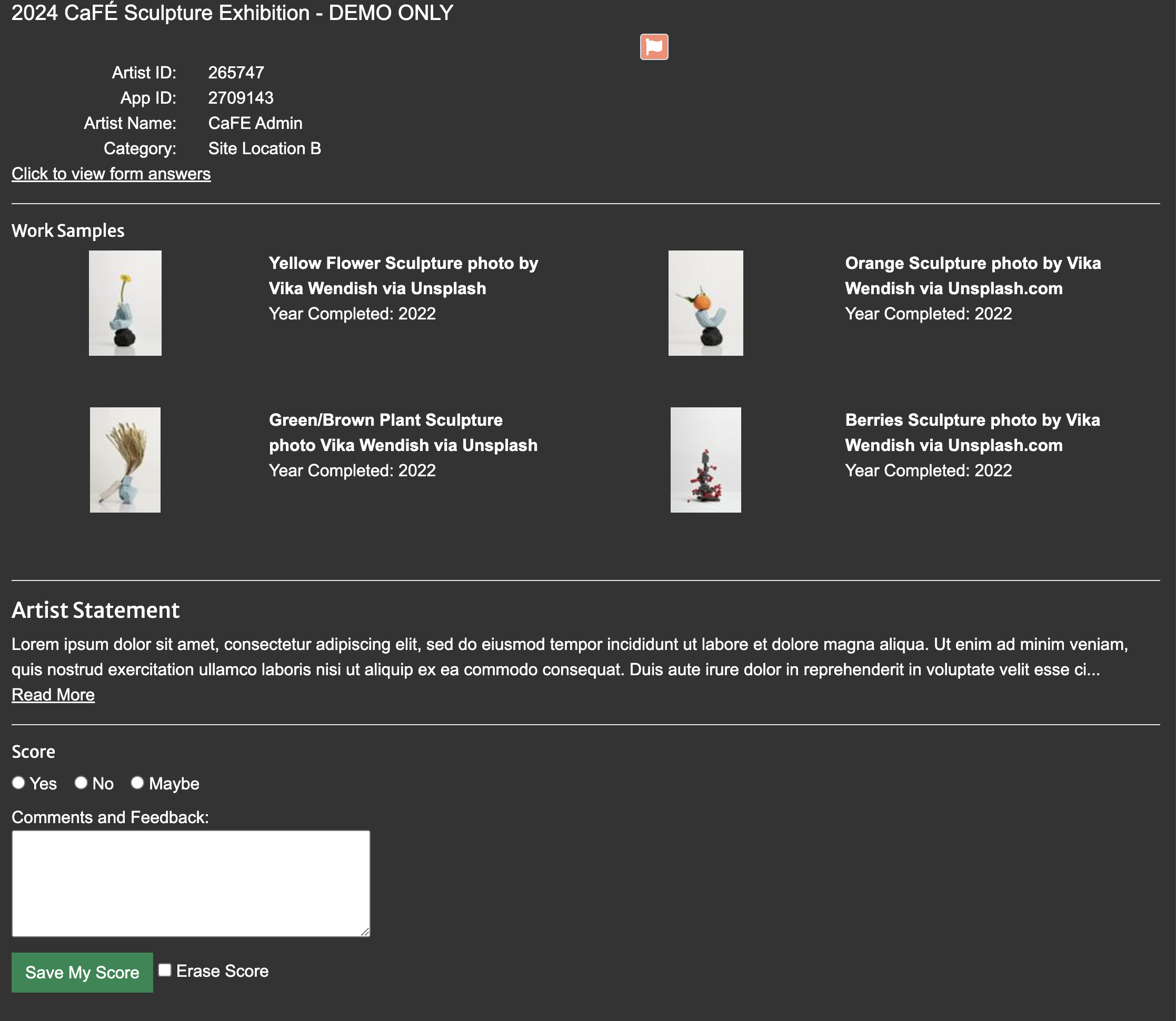
On the scorecard, click View Form Answers to view the application answers.
Click on the thumbnail image to enlarge it.
On the enlarged image, hover over the center and click the Info icon to view the artwork information.
To zoom in on the image, click the plus (+) button. To zoom out, click the minus (-) button. To view the image in full-screen, click the button next to FULL.
For audio and video playback, hover over the center of the image and click the Play button.
If the applicant included an artist statement, it will appear under the thumbnail images. Click Read More to expand.
Enter your Score and any Comments and Feedback.
Click Save My Score to proceed to the next entry.
⚡TIP: Be sure to save all scores before closing the window.