

How to Open the Scorecard Using Grid View
Log in to CaFÉ with your juror account and select the call from the Current Event drop-down menu (if applicable).
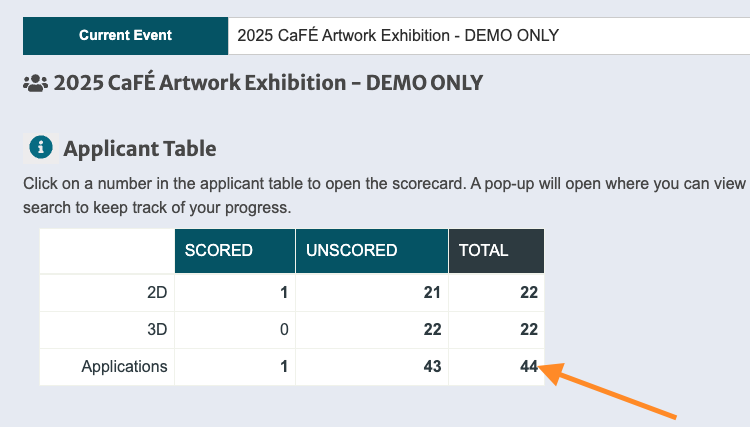
From the Applicant Table, click on the number of entries you wish to score. The scorecard will open directly on the page.
⚠️ Note: Ensure your browser allows pop-ups and cookies from the CaFÉ website. Some features may not work properly if pop-ups and cookies are deactivated.
How to Score Applications Using Grid View
On the scorecard, click the File 📄 and Info ℹ️ icons at the top of each thumbnail image to view application answers and more information.
Click the thumbnail image to enlarge. This will open a pop-up window with the image.
On the enlarged image, hover over the center and click the Info icon to view the artwork information.
To zoom in on the image, click the plus (+) button. To zoom out, click the minus (-) button. To view the image in full-screen, click the button next to FULL.
For audio and video playback, hover over the center of the enlargement and click the Play button.
Close the pop-up window to return to the scorecard.
Enter your score below each thumbnail image.
Click Save My Scores and continue to the next set of un-scored applications.
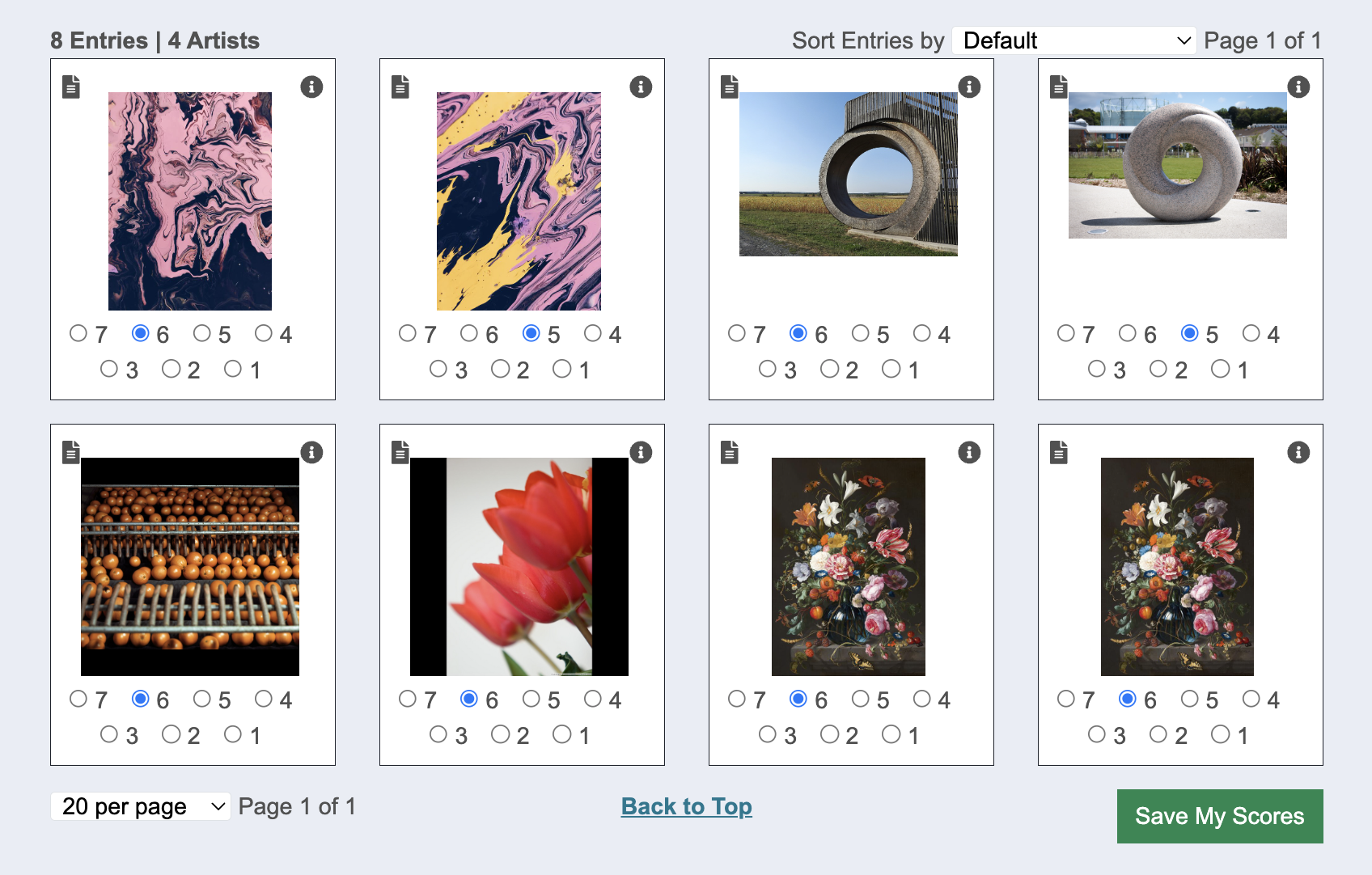
⚡TIP: Be sure to save all scores before leaving the page.
